> ## Documentation Index
> Fetch the complete documentation index at: https://www.renderjuice.com/docs/llms.txt
> Use this file to discover all available pages before exploring further.
# Using Fluid Simulations with Render Farms
> Fluid simulations with Mantaflow are fully supported. Learn how to bake caches, set relative paths, and upload correctly.
## Status: ✅ Fully Supported
Fluid simulations, including those created with Mantaflow, are fully supported on Renderjuice and should work as expected out of the box 🎉 without much hassle.
**Key Requirements:** The key requirement is that you bake your fluid simulations and include the cache files when uploading your scene. Since fluid simulations rely on cache data that isn't automatically embedded in the `.blend` file, you must zip your fluid caches along with your scene before uploading.
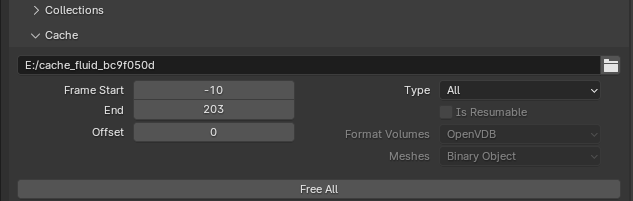
If you're seeing `E:/` or similar in your cache path, you've not set the path correctly and it is still absolutely linked.
Here's an incorrect and absolutely linked example:
 ## Example Files
Below are example `.blend` files demonstrating the correct and incorrect setups for fluid simulations.
Unbaked `.blend` file with fluid simulation
Zipped `.blend` file with baked fluid simulation cache
The examples feature a simple fluid simulation setup, showcasing how baking affects the simulation during rendering.
## Instructions
To use fluid simulations with Renderjuice (and likely other render farms), you need to bake the simulation and include the cache files when uploading. The most common mistakes here
are forgetting to `Save` after hitting `Free All` and `Bake All` or forgetting to make sure the cache paths are relative. In the case that your paths are incorrect,
we may either try to automatically fix them or your render might just miss the fluid simulation so be careful!
Create your scene with the fluid simulation. This might involve setting up a domain, inflow objects, and configuring the simulation settings as desired.
After setting up your simulation, you need to bake it.
To bake the fluid simulation:
1. Select the domain object.
2. Go to the **Physics Properties** panel.
3. Under **Fluid** settings, navigate to the **Settings** section.
4. Click on **Bake All** or **Bake Data** (depending on your Blender version). Or **Free All** in the case that you've already baked.
## Example Files
Below are example `.blend` files demonstrating the correct and incorrect setups for fluid simulations.
Unbaked `.blend` file with fluid simulation
Zipped `.blend` file with baked fluid simulation cache
The examples feature a simple fluid simulation setup, showcasing how baking affects the simulation during rendering.
## Instructions
To use fluid simulations with Renderjuice (and likely other render farms), you need to bake the simulation and include the cache files when uploading. The most common mistakes here
are forgetting to `Save` after hitting `Free All` and `Bake All` or forgetting to make sure the cache paths are relative. In the case that your paths are incorrect,
we may either try to automatically fix them or your render might just miss the fluid simulation so be careful!
Create your scene with the fluid simulation. This might involve setting up a domain, inflow objects, and configuring the simulation settings as desired.
After setting up your simulation, you need to bake it.
To bake the fluid simulation:
1. Select the domain object.
2. Go to the **Physics Properties** panel.
3. Under **Fluid** settings, navigate to the **Settings** section.
4. Click on **Bake All** or **Bake Data** (depending on your Blender version). Or **Free All** in the case that you've already baked.
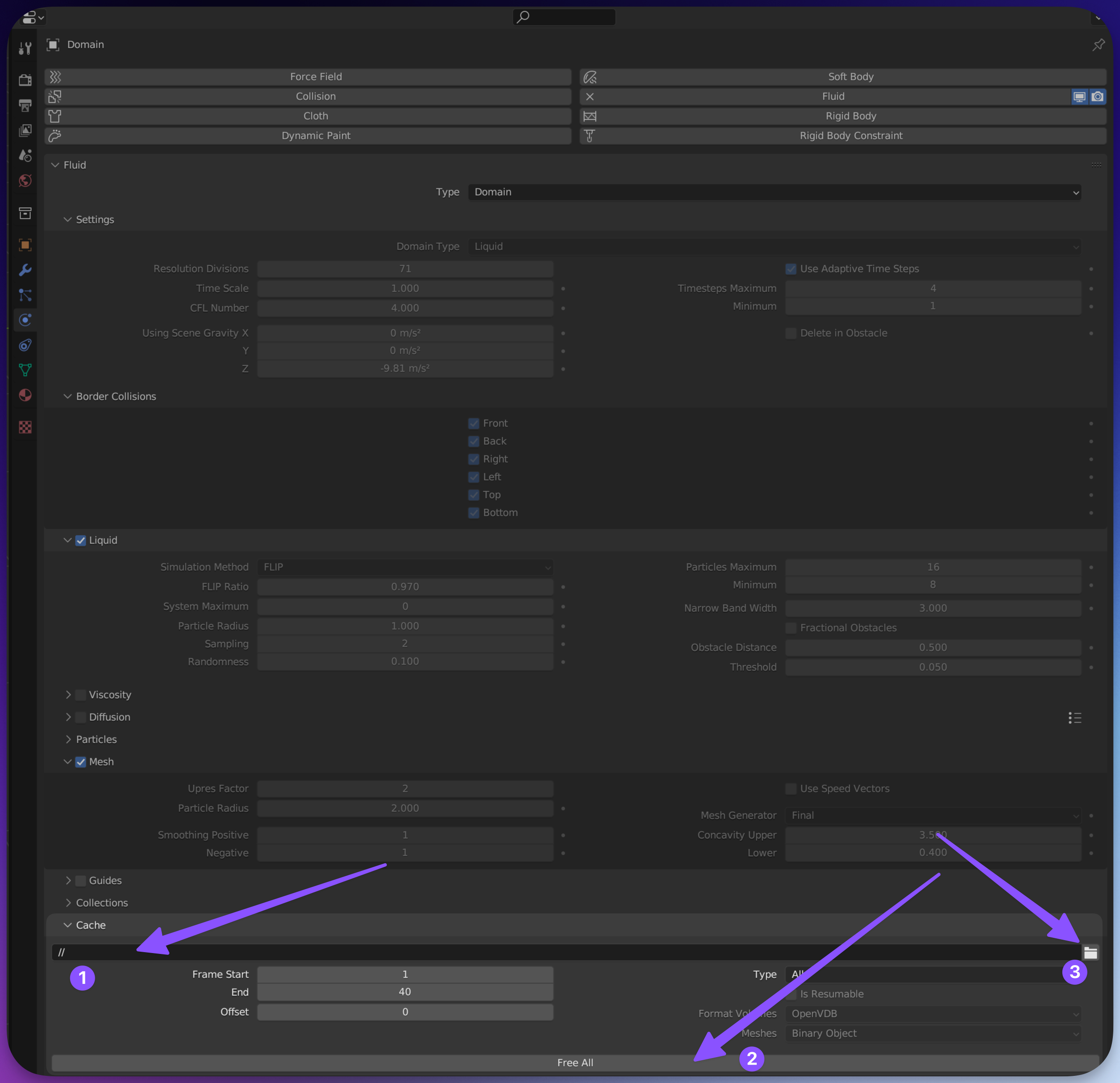 In this diagram we point out the following:
1. the `//` is Blender's way of saying "relative to the current file", you may either type in your path here using `//my-cache-folder-name` or use the folder icon to navigate to the cache location. If you have a drive like `C:\` or `D:\` here you've not set the path correctly and it is still absolutely linked.
2. Click on **Free All** and **Bake All** to bake the simulation.
3. You can use the folder icon to navigate to the cache location (which we elaborate on below).
By default, Blender will pick a random temporary directory for you if you haven't saved your `.blend` file yet which we don't want!
* **Verify the Cache Directory:** In the **Fluid** settings under **Cache**, verify the **Cache Directory** path. It should be set to a folder that you can include when uploading.
* **Ensure Cache Pathing is Correct:** You should Free and Bake as needed so that the cache files are generated. Then **make sure to save** your `.blend` file. The last save ensures the pathing is persisted into the `.blend` and the bake step writes the cache out to the disk.
You can do this by either:
* Typing in the path using `//my-cache-folder-name`
* Using the GUI folder picker by pressing the folder icon (3 in the diagram above) to navigate to the cache location.
The name you set here does not matter, we only care that the path is relative.
When using the folder icon (via GUI), you should see something like this, note that you have to click on the Cog Icon to display the option to make the pathing relative.
In this diagram we point out the following:
1. the `//` is Blender's way of saying "relative to the current file", you may either type in your path here using `//my-cache-folder-name` or use the folder icon to navigate to the cache location. If you have a drive like `C:\` or `D:\` here you've not set the path correctly and it is still absolutely linked.
2. Click on **Free All** and **Bake All** to bake the simulation.
3. You can use the folder icon to navigate to the cache location (which we elaborate on below).
By default, Blender will pick a random temporary directory for you if you haven't saved your `.blend` file yet which we don't want!
* **Verify the Cache Directory:** In the **Fluid** settings under **Cache**, verify the **Cache Directory** path. It should be set to a folder that you can include when uploading.
* **Ensure Cache Pathing is Correct:** You should Free and Bake as needed so that the cache files are generated. Then **make sure to save** your `.blend` file. The last save ensures the pathing is persisted into the `.blend` and the bake step writes the cache out to the disk.
You can do this by either:
* Typing in the path using `//my-cache-folder-name`
* Using the GUI folder picker by pressing the folder icon (3 in the diagram above) to navigate to the cache location.
The name you set here does not matter, we only care that the path is relative.
When using the folder icon (via GUI), you should see something like this, note that you have to click on the Cog Icon to display the option to make the pathing relative.
 After baking, make sure to save your `.blend` file. The baked simulation references are now part of your scene.
Zip your `.blend` file along with the cache folder.
* **Ensure the Cache Folder is Included:** The cache folder typically has a name like `cache` `blob` or similar and contains the baked simulation data.
If you prefer not to assemble the archive by hand, [Blend Project Packer](https://www.renderjuice.com/blender/renderjuice-extensions/blend-project-packer) can help collect detected project dependencies and baked cache folders into a portable project zip.
Your zip file should have a structure similar to this, where your file is included in the `zip` with your selected cache folder. Note that these extensions may vary from case to case.
```markdown theme={null}
your_project.zip
|-- your_scene.blend
|-- cache/
|-- fluid/
|-- [simulation cache files].vdb
|-- config/
|-- [cache config files].uni
|--mesh/
|-- [simulation cache files].bobj.gz
```
Upload your zipped file to Renderjuice and start your render.
## Checklist
* [x] Did you bake your fluid simulation?
* [x] Did you save your `.blend` file after baking?
* [x] Did you include the cache folder when zipping your project?
* [x] Is the cache directory path in Blender set correctly?
* [x] Are all necessary objects included in the bake?
## FAQ
Fluid simulations in Blender are not automatically included when rendering on a render farm. The simulation data is stored externally in cache files. Baking the simulation ensures that the fluid behavior is calculated and saved, and including the cache files ensures that the render farm can access this data to render your scene correctly.
No, Blender does not support packing fluid simulation caches into the `.blend` file. You must include the cache files separately by zipping them along with your `.blend` file.
In the **Fluid** settings under **Cache**, ensure the **Cache Directory** is set to a relative path. Ideally, it should be a folder next to your `.blend` file. This way, when you zip the `.blend` file and cache folder together, the simulation can find the cache files.
If you're seeing your simulation, but it's the old version, you've likely not saved your `.blend` file after baking. Make sure to save your `.blend` file after baking. As a reminder, baking writes the cache out to the disk, saving ensures your pathing is updated inside your `.blend` file to point to the baked information you just made.
Yes, other simulations like smoke, fire, and particle systems also require baking and including their cache files when rendering on a render farm, but it's usually the same process! We are looking into ways to make this a little easier in the future.
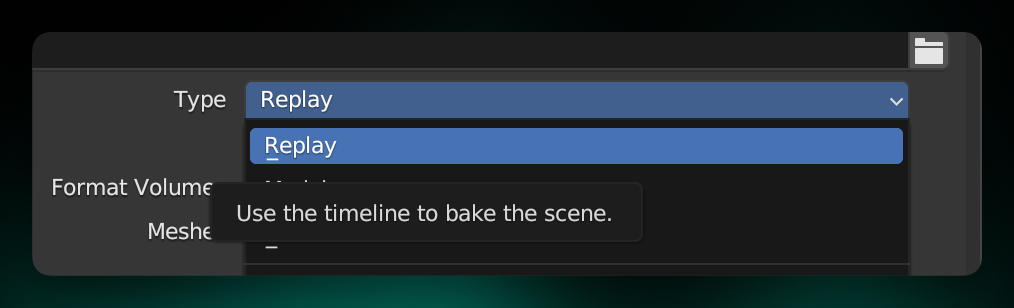
Sometimes, but it's not recommended. Instead use the **Modular** or **Final** cache type rather than **Replay**. The **Replay** cache is intended for interactive playback in the viewport and more for iterating on the simulation in the viewport and not necessarily for final renders. The Replay option basically bakes for you *as* you work on your scene, but if you make changes and Blender hasn't baked, then your changes won't be persisted.
After baking, make sure to save your `.blend` file. The baked simulation references are now part of your scene.
Zip your `.blend` file along with the cache folder.
* **Ensure the Cache Folder is Included:** The cache folder typically has a name like `cache` `blob` or similar and contains the baked simulation data.
If you prefer not to assemble the archive by hand, [Blend Project Packer](https://www.renderjuice.com/blender/renderjuice-extensions/blend-project-packer) can help collect detected project dependencies and baked cache folders into a portable project zip.
Your zip file should have a structure similar to this, where your file is included in the `zip` with your selected cache folder. Note that these extensions may vary from case to case.
```markdown theme={null}
your_project.zip
|-- your_scene.blend
|-- cache/
|-- fluid/
|-- [simulation cache files].vdb
|-- config/
|-- [cache config files].uni
|--mesh/
|-- [simulation cache files].bobj.gz
```
Upload your zipped file to Renderjuice and start your render.
## Checklist
* [x] Did you bake your fluid simulation?
* [x] Did you save your `.blend` file after baking?
* [x] Did you include the cache folder when zipping your project?
* [x] Is the cache directory path in Blender set correctly?
* [x] Are all necessary objects included in the bake?
## FAQ
Fluid simulations in Blender are not automatically included when rendering on a render farm. The simulation data is stored externally in cache files. Baking the simulation ensures that the fluid behavior is calculated and saved, and including the cache files ensures that the render farm can access this data to render your scene correctly.
No, Blender does not support packing fluid simulation caches into the `.blend` file. You must include the cache files separately by zipping them along with your `.blend` file.
In the **Fluid** settings under **Cache**, ensure the **Cache Directory** is set to a relative path. Ideally, it should be a folder next to your `.blend` file. This way, when you zip the `.blend` file and cache folder together, the simulation can find the cache files.
If you're seeing your simulation, but it's the old version, you've likely not saved your `.blend` file after baking. Make sure to save your `.blend` file after baking. As a reminder, baking writes the cache out to the disk, saving ensures your pathing is updated inside your `.blend` file to point to the baked information you just made.
Yes, other simulations like smoke, fire, and particle systems also require baking and including their cache files when rendering on a render farm, but it's usually the same process! We are looking into ways to make this a little easier in the future.
Sometimes, but it's not recommended. Instead use the **Modular** or **Final** cache type rather than **Replay**. The **Replay** cache is intended for interactive playback in the viewport and more for iterating on the simulation in the viewport and not necessarily for final renders. The Replay option basically bakes for you *as* you work on your scene, but if you make changes and Blender hasn't baked, then your changes won't be persisted.
 Having trouble or something doesn't seem right? Just chat with us—we're happy to help and respond quickly!
## Related topics
- [Why It Works Locally But Not On Renderjuice](/docs/renderjuice-101/works-locally-not-on-renderjuice.md)
- [Learn by Example: Demo Files and Render Setups](/docs/rendering-with-blender/learn-by-example.md)
- [Using Rigid Body Simulations with Render Farms](/docs/rendering-with-blender/rigid-body-simulations.md)
- [Using Simulation Nodes with Render Farms](/docs/rendering-with-blender/simulation-nodes.md)
- [Using Composite Node File Outputs with Render Farms](/docs/rendering-with-blender/composite-nodes.md)
Having trouble or something doesn't seem right? Just chat with us—we're happy to help and respond quickly!
## Related topics
- [Why It Works Locally But Not On Renderjuice](/docs/renderjuice-101/works-locally-not-on-renderjuice.md)
- [Learn by Example: Demo Files and Render Setups](/docs/rendering-with-blender/learn-by-example.md)
- [Using Rigid Body Simulations with Render Farms](/docs/rendering-with-blender/rigid-body-simulations.md)
- [Using Simulation Nodes with Render Farms](/docs/rendering-with-blender/simulation-nodes.md)
- [Using Composite Node File Outputs with Render Farms](/docs/rendering-with-blender/composite-nodes.md)