> ## Documentation Index
> Fetch the complete documentation index at: https://www.renderjuice.com/docs/llms.txt
> Use this file to discover all available pages before exploring further.
# Using Simulation Nodes with Render Farms
> Simulation nodes are fully supported on Renderjuice. Learn how to bake, cache, and upload your simulation data correctly.
## Status: ✅ Fully Supported
Simulation Nodes are Fully Supported on Renderjuice and should work fairly intuitively out of the box.
The biggest thing to check is that you've cached and uploaded the cache.
## Example Files
Below we’ve linked to a very basic example `.blend` file downloads with the proper setup to try to replicate. Read on for more detailed instructions and tips!
Uncached `zip` of scene with simulation nodes
Cached `zip` of scene with simulation nodes
## Instructions
To use simulation nodes with Renderjuice and likely other render farms, at a high level you mostly just need to bake and upload the cache:
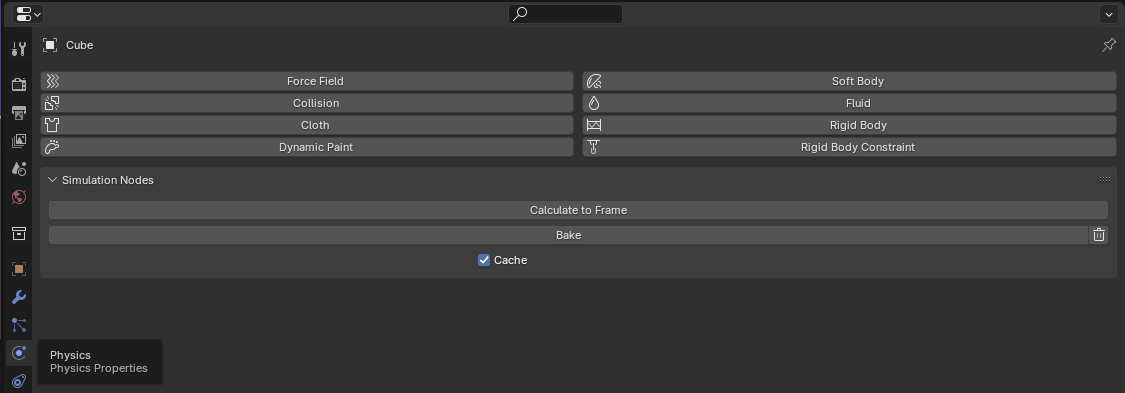
Ensure each object inside your Blender scene that utilizes simulation nodes are baked and cached. This can be found under `Physics > Simulation Nodes > Bake`
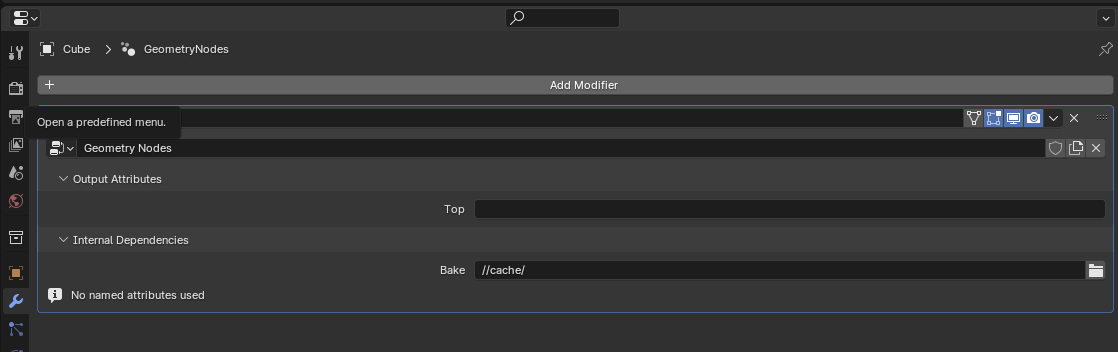
 Ensure the path to where the cached simulation is located is where you expect it. This should be inside the folder you’ll be zipping and uploading. With the object(s) that use simulation nodes selected, you can edit or set this path under `Modifiers > Internal Dependencies > Bake`
By default, this will be set correctly for most scenarios.
Ensure the path to where the cached simulation is located is where you expect it. This should be inside the folder you’ll be zipping and uploading. With the object(s) that use simulation nodes selected, you can edit or set this path under `Modifiers > Internal Dependencies > Bake`
By default, this will be set correctly for most scenarios.
 Make sure you’re saving your `.blend` after you’ve made any changes or re-baked, because baking will change dependencies within your `.blend` file
Zip your assets and upload your scene with the simulation cache on Renderjuice. [Blend Project Packer](/docs/renderjuice-101/blend-project-packer) can help collect detected project dependencies and baked cache folders into a portable project zip.
## Checklist
* [x] This might seem obvious, but did you save **after** you baked? Easy to miss!
* [x] Is your cache actually inside your `.zip` ? It should contain a series of data files with the file extension `.blob` and `.json` .
* [x] Did you set the cache path correctly to be relative?
* [x] Your directory structure should somewhat look like this:
```markdown theme={null}
cache/
|-- Cube_GeometryNodes/
| |-- 1014180200/
| | |-- blobs/
| | | |-- 00001_0000.blob
| | | |-- 00002_0000.blob
| | | |-- ...
| | |-- meta/
| | |-- 00001_00000.json
| | |-- 00002_0000.json
| | |-- ...
|-- Metaball_GeometryNodes/
| |-- 102123200/
| | |-- blobs/
| | | |-- 00001_0000.blob
| | | |-- 00002_0000.blob
| | | |-- ...
| | |-- meta/
| | |-- 00001_00000.json
| | |-- 00002_0000.json
| | |-- ...
|-- your_scene.blend
```
Can’t figure it out or something confusing? Just chat with us, we’re happy to help and respond pretty quickly!
## FAQ
No, Blender does not support packing simulation caches into a single file see [Blender docs on Packed Data](https://docs.blender.org/manual/en/4.2/files/blend/packed_data.html). See: You *must* use a `.zip` with Renderjuice to use simulation nodes.
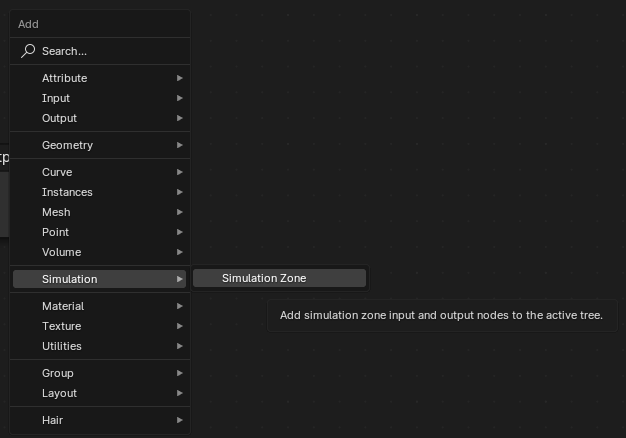
Simulation nodes as a category can be a bit confusing. But the nodes we’re referring to here are all found under the “Simulation” category in the “Add” menu of Geometry Nodes such as Simulation Zones.
Make sure you’re saving your `.blend` after you’ve made any changes or re-baked, because baking will change dependencies within your `.blend` file
Zip your assets and upload your scene with the simulation cache on Renderjuice. [Blend Project Packer](/docs/renderjuice-101/blend-project-packer) can help collect detected project dependencies and baked cache folders into a portable project zip.
## Checklist
* [x] This might seem obvious, but did you save **after** you baked? Easy to miss!
* [x] Is your cache actually inside your `.zip` ? It should contain a series of data files with the file extension `.blob` and `.json` .
* [x] Did you set the cache path correctly to be relative?
* [x] Your directory structure should somewhat look like this:
```markdown theme={null}
cache/
|-- Cube_GeometryNodes/
| |-- 1014180200/
| | |-- blobs/
| | | |-- 00001_0000.blob
| | | |-- 00002_0000.blob
| | | |-- ...
| | |-- meta/
| | |-- 00001_00000.json
| | |-- 00002_0000.json
| | |-- ...
|-- Metaball_GeometryNodes/
| |-- 102123200/
| | |-- blobs/
| | | |-- 00001_0000.blob
| | | |-- 00002_0000.blob
| | | |-- ...
| | |-- meta/
| | |-- 00001_00000.json
| | |-- 00002_0000.json
| | |-- ...
|-- your_scene.blend
```
Can’t figure it out or something confusing? Just chat with us, we’re happy to help and respond pretty quickly!
## FAQ
No, Blender does not support packing simulation caches into a single file see [Blender docs on Packed Data](https://docs.blender.org/manual/en/4.2/files/blend/packed_data.html). See: You *must* use a `.zip` with Renderjuice to use simulation nodes.
Simulation nodes as a category can be a bit confusing. But the nodes we’re referring to here are all found under the “Simulation” category in the “Add” menu of Geometry Nodes such as Simulation Zones.
 These will correspond to Simulation Input and Simulation Output nodes. All other geometry nodes, to our knowledge, will work out of the box.
Yes! The same instructions as above apply, but must be individually applied to each simulation.
These will correspond to Simulation Input and Simulation Output nodes. All other geometry nodes, to our knowledge, will work out of the box.
Yes! The same instructions as above apply, but must be individually applied to each simulation.