

What are Workspaces
Workspaces are dedicated environments for organizing your rendering projects, assets, and team collaboration. Every RenderJuice user automatically gets a Personal Workspace when they sign up. Additionally, you can create Team Workspaces to collaborate with studios, teams, or on specific projects. Each workspace has its own:- Subscription and credit balance
- Render queue and history
- Uploaded assets, .blend files, and addons
- Team members (for Team workspaces)
Personal Workspace
Your Personal Workspace is automatically created when you sign up for RenderJuice. Every user has exactly one Personal Workspace that serves as your private rendering environment. Features:- Private render environment - Your renders are private and controlled by you alone
- Personal assets and uploads - Your .blend files, assets, and uploads are stored separately
- Workspace-level billing and credits - Your Personal workspace has its own subscription and credit balance
- Full control - You have complete control over all renders and settings
Your Personal Workspace cannot be deleted or recreated. It’s your default workspace and will always be available to you.
Team Workspaces
Team Workspaces are designed for collaboration. You can create as many Team Workspaces as you need for different teams, studios, or projects. Benefits:- Shared renders and project files - All team members can access renders and .blend files uploaded to the workspace
- Shared addons - Upload addons once and keep everyone’s rendering environment consistent across the team
- Workspace-level subscription and credits - Each Team workspace has its own subscription and credit balance that all members use
- All members render using the same credit balance - No need for individual subscriptions; everyone renders from the shared pool
- Invite members and manage roles - Control who can upload assets, manage addons, or adjust workspace settings
- Shared render history - See every render submitted by your team in one central, organized view
Working with Team Workspaces
Creating a Team Workspace
1
Click the workspace selector in the header
Look for the workspace selector button in the top navigation.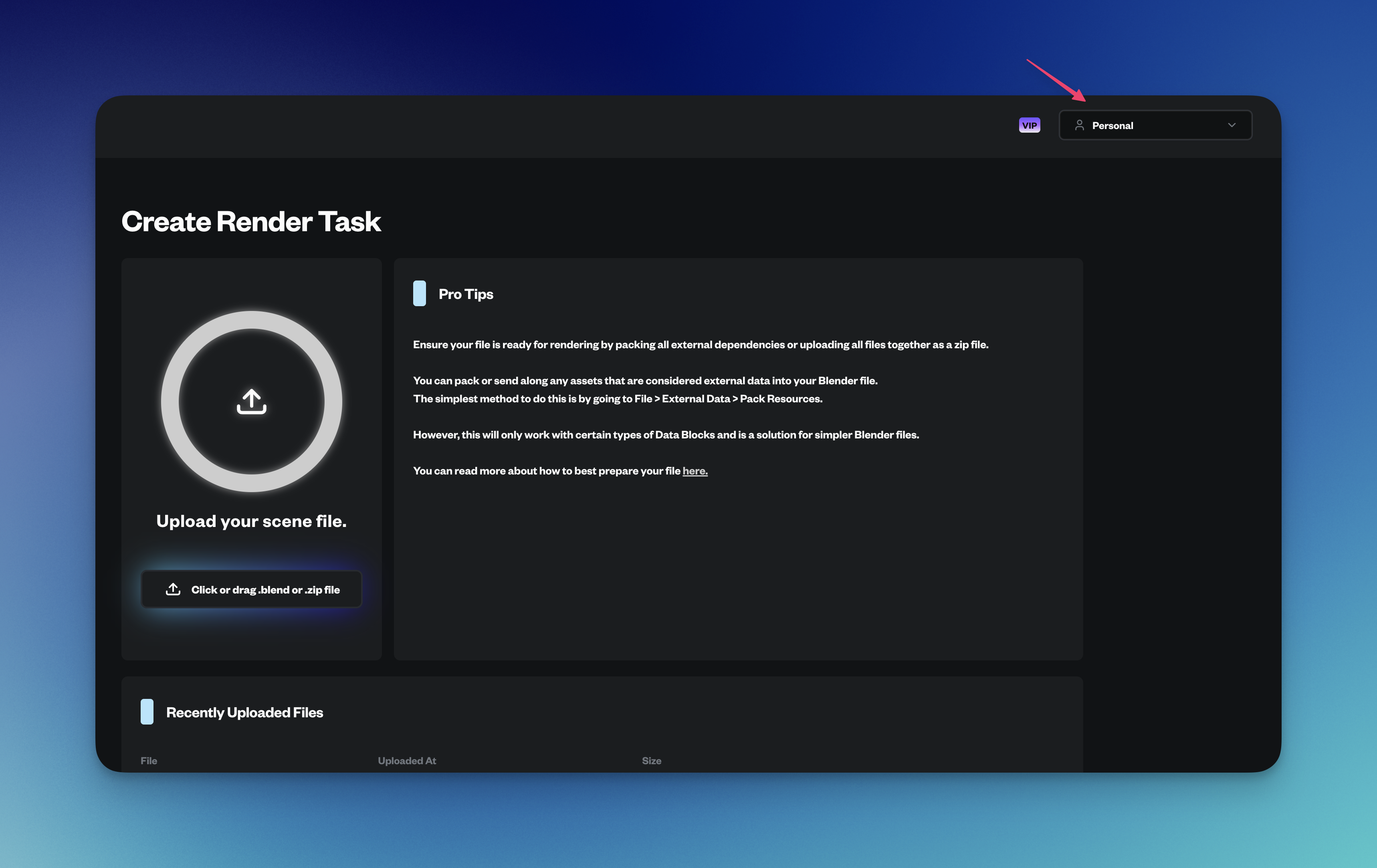
2
Select 'Create Workspace' from the dropdown
In the dropdown menu, choose the “Create Workspace” option.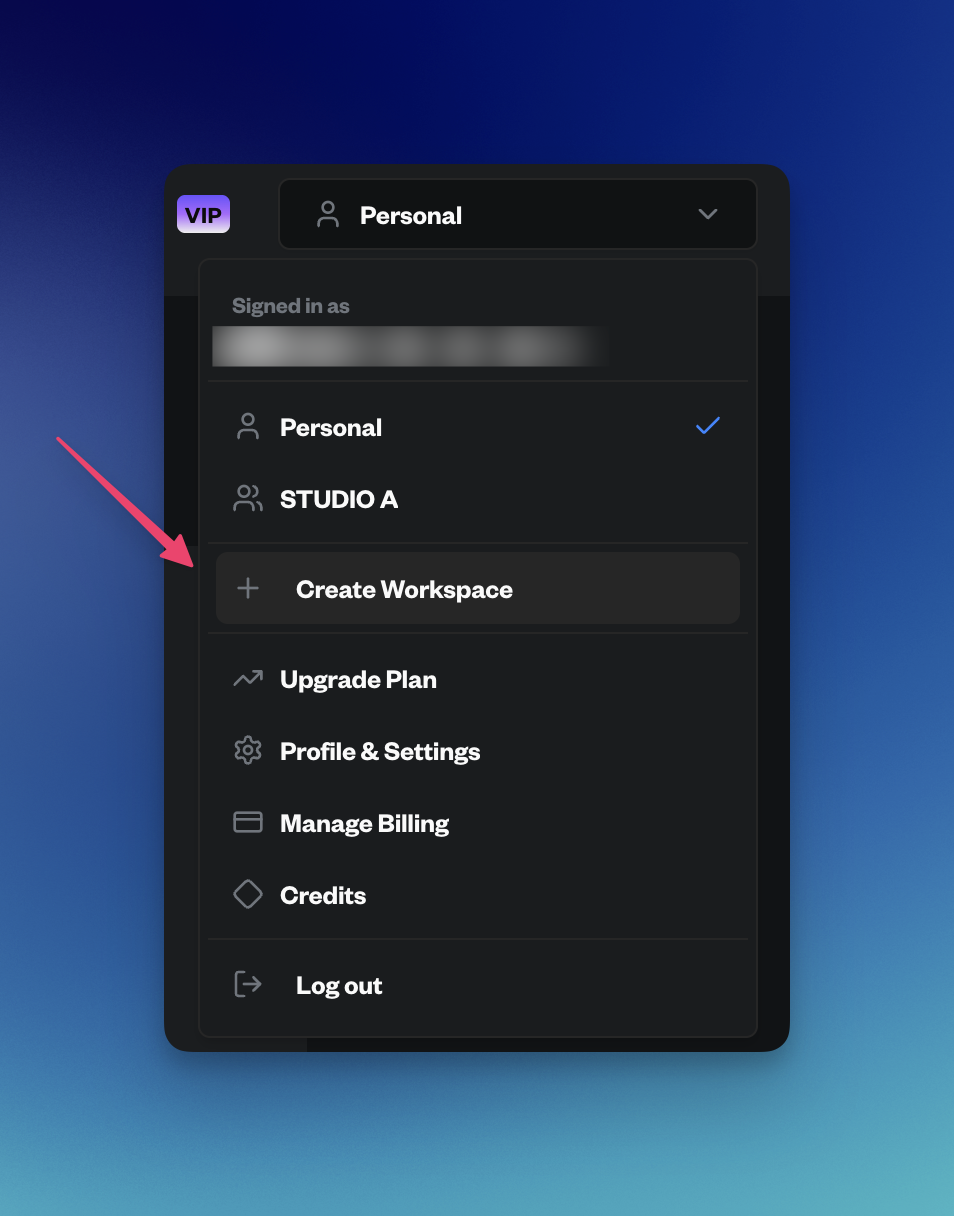
3
Enter a name for your workspace
Give your workspace a descriptive name (e.g., “Studio Production” or “Client Project”).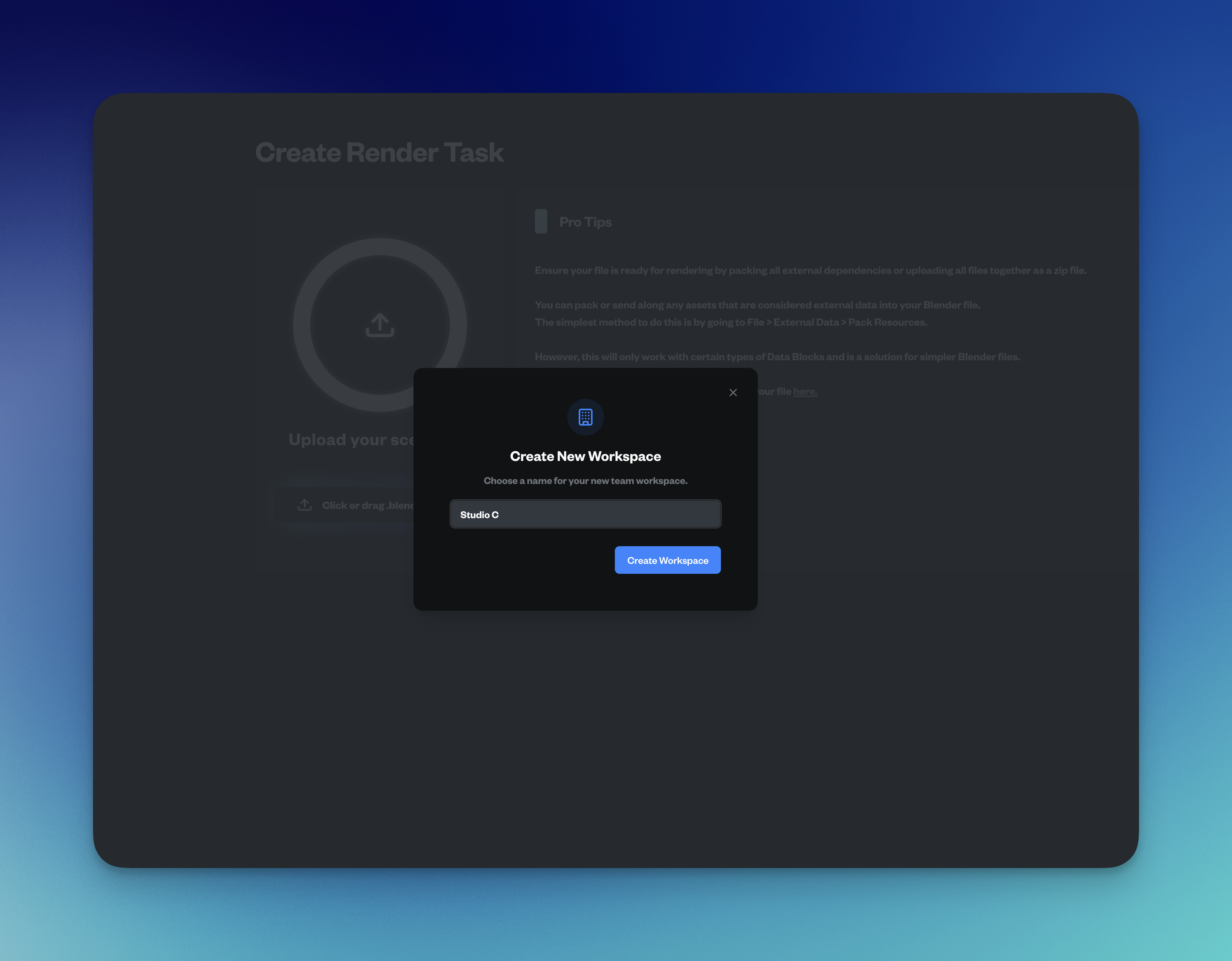
Inviting Members
Once your Team Workspace is created, you can invite team members:1
Go to Settings and navigate to Team Members
Open the Settings page and find the “Team Members” section.
2
Enter the email address
Type in the email address of the person you want to invite.
3
Select their role
Choose whether they should be an Admin or Member.
4
Click Invite
Send the invitation. The system will automatically email them with a link to accept or decline.
- Owner - Full control over the workspace
- Admin - Can manage team members and workspace
- Member - Can use workspace resources and submit renders
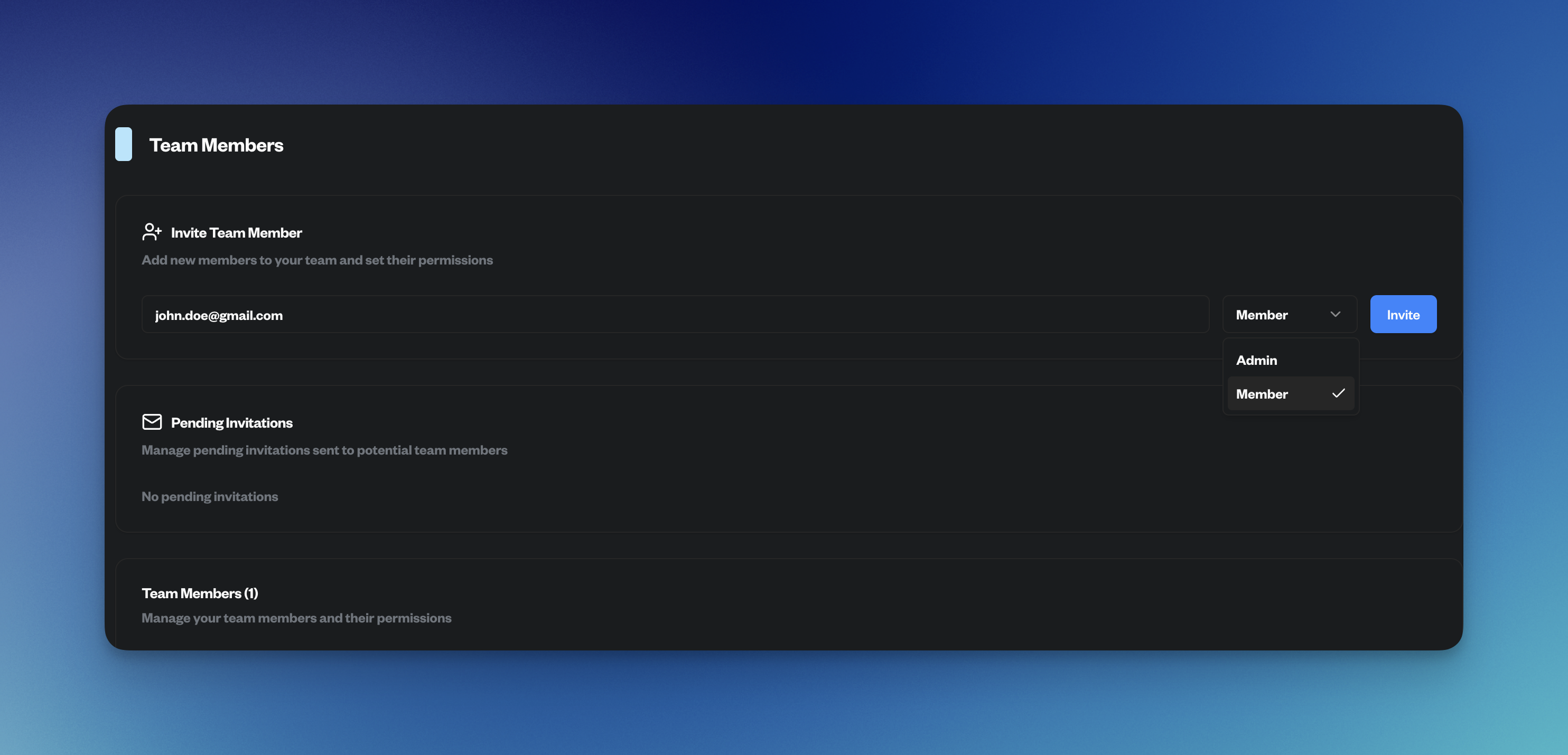
Inviting team members and managing roles
Switching Between Workspaces
You can easily switch between your Personal Workspace and any Team Workspaces you’re part of:1
Click the workspace selector in the header
Find the workspace selector button in the top navigation.
2
Select the workspace from the dropdown
Choose which workspace you want to work in.
3
Context switches automatically
All renders, assets, and settings will instantly switch to that workspace context.
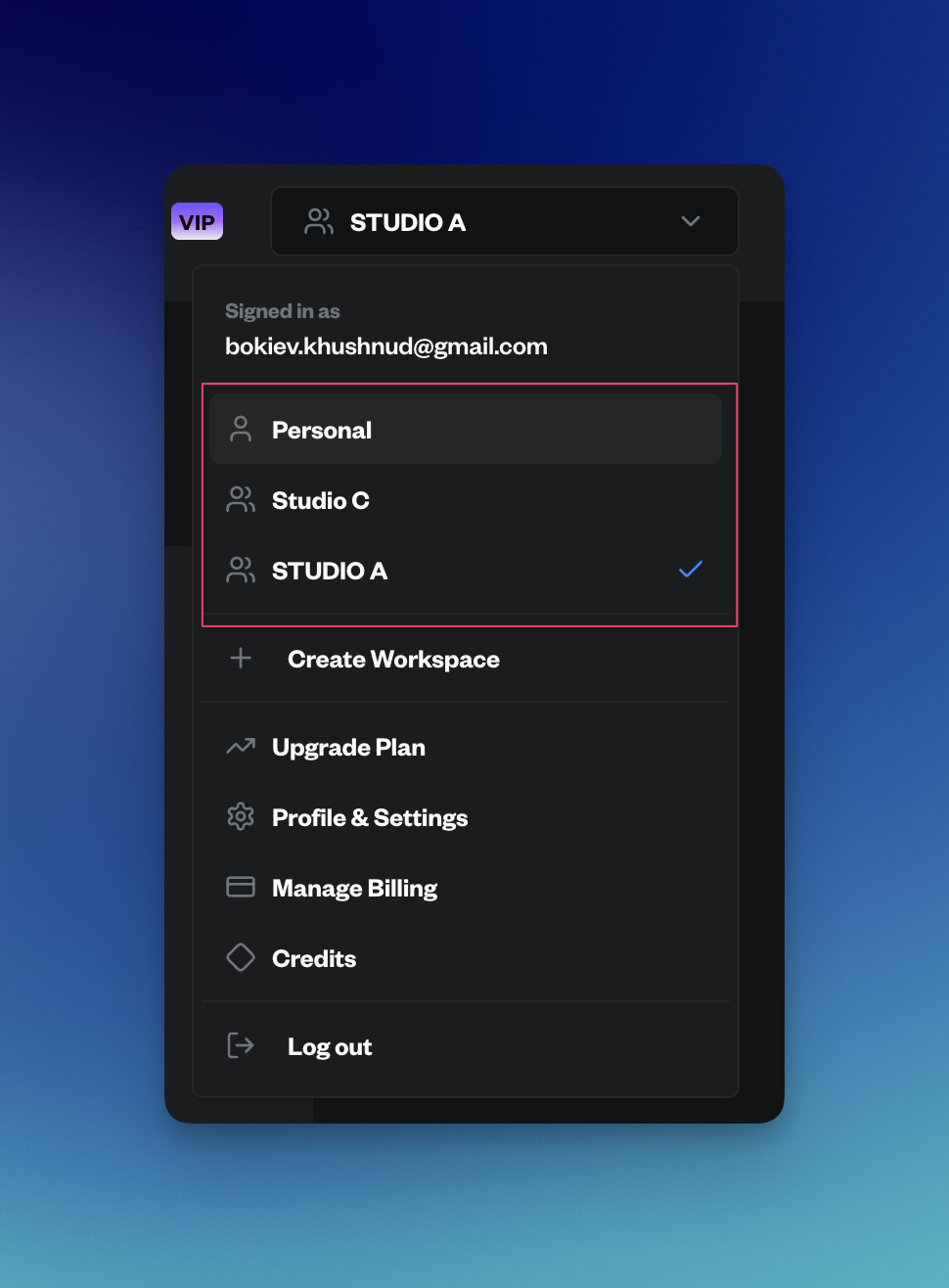
Switching between workspaces
Workspace-Based Credits
Each workspace operates independently with its own subscription and credit balance:- Personal Workspace - Your personal subscription and credits
- Team Workspace - Shared subscription and credits for all members
What happens when a Team Workspace runs out of credits?
What happens when a Team Workspace runs out of credits?
When a Team Workspace runs out of credits, all active renders in that workspace will be suspended. Members can still view existing renders and access resources, but new renders cannot be submitted until credits are added. The workspace owner or admin can add credits or upgrade the subscription at any time.
Can I use my Personal Workspace and Team Workspaces simultaneously?
Can I use my Personal Workspace and Team Workspaces simultaneously?
Yes! Your Personal Workspace and Team Workspaces are completely independent. You can switch between them at any time, and each has its own credit balance, assets, and render queue. You could be rendering personally in your Personal Workspace while also collaborating in multiple Team Workspaces.