Rigid body simulations are fully supported on Renderjuice and should work as expected out of the box 🎉 without much hassle.The key requirement is that you bake your rigid body simulations before uploading your scene. You can do this in two ways:
Bake to Keyframes: This converts the simulation into keyframes embedded within your .blend file.
Bake All Dynamics: This bakes the simulation into a cache that is stored in the .blend file when you save, so you still upload just the .blend.
Create your scene with the rigid body simulation. This might involve adding rigid body physics to objects like the cube and monkey mesh and setting up the simulation settings as desired.
2
Bake to Keyframes
After setting up your simulation, you need to bake it to keyframes.
To bake the rigid body simulation to keyframes:
Select all the objects involved in the rigid body simulation.
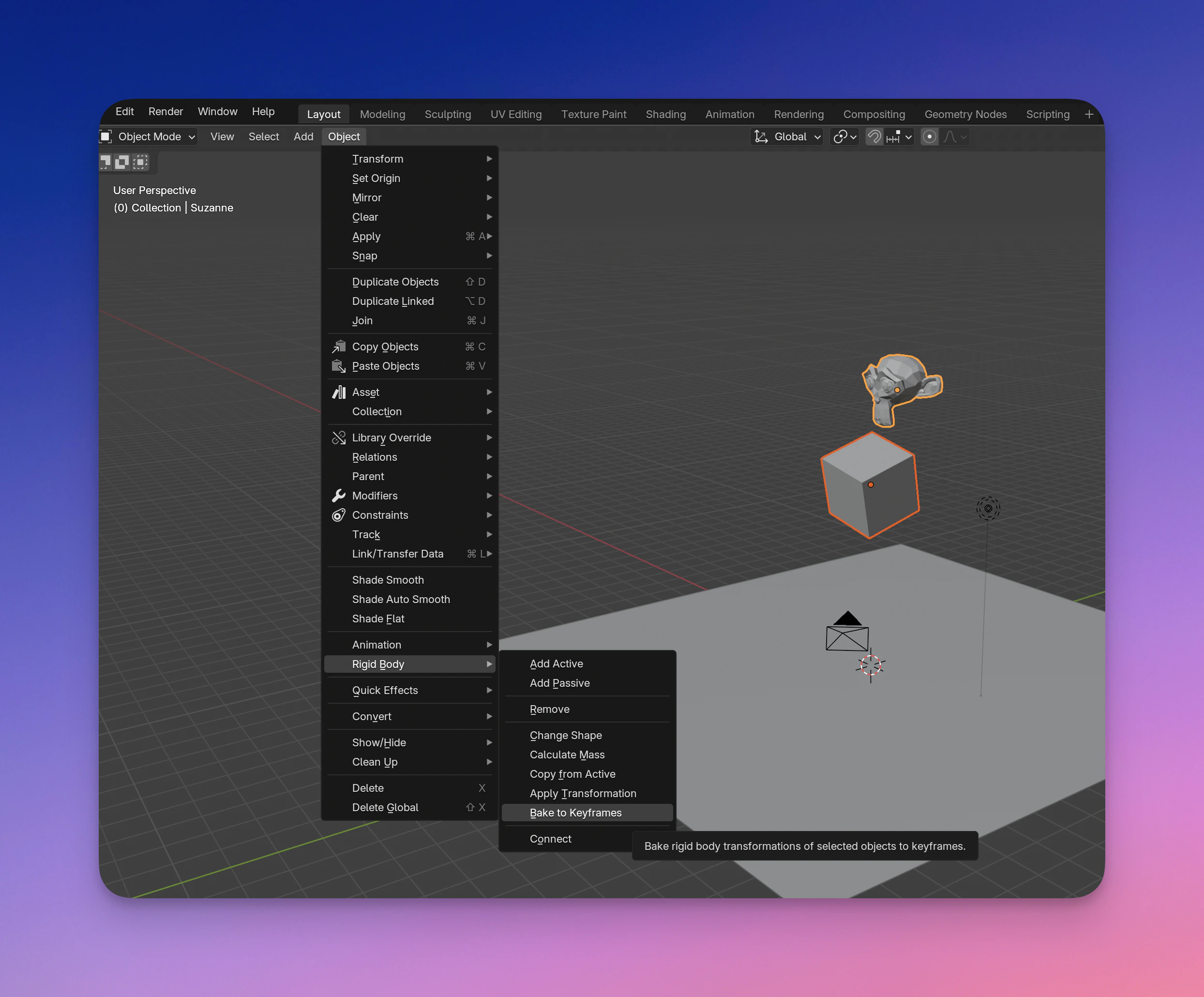
Go to the Object menu at the top, navigate to Rigid Body > Bake To Keyframes.
In the pop-up dialog, set the frame range and baking options as needed, then click OK.
Baking Rigid Body Simulation to Keyframes
3
Save Your Scene
After baking, make sure to save your .blend file. The baked keyframes are now part of your scene.
4
Upload and Render
Upload your .blend file to Renderjuice and start your render. Since the simulation is baked to keyframes, it will render correctly on the farm.
There’s no need to upload any cache files or additional assets since the animation data is stored within the .blend file.
1
Set Up Your Rigid Body Simulation
Create your scene with the rigid body simulation as usual.
2
Bake All Dynamics
Use the ‘Bake All Dynamics’ option to bake the simulation into a cache.
To do this:
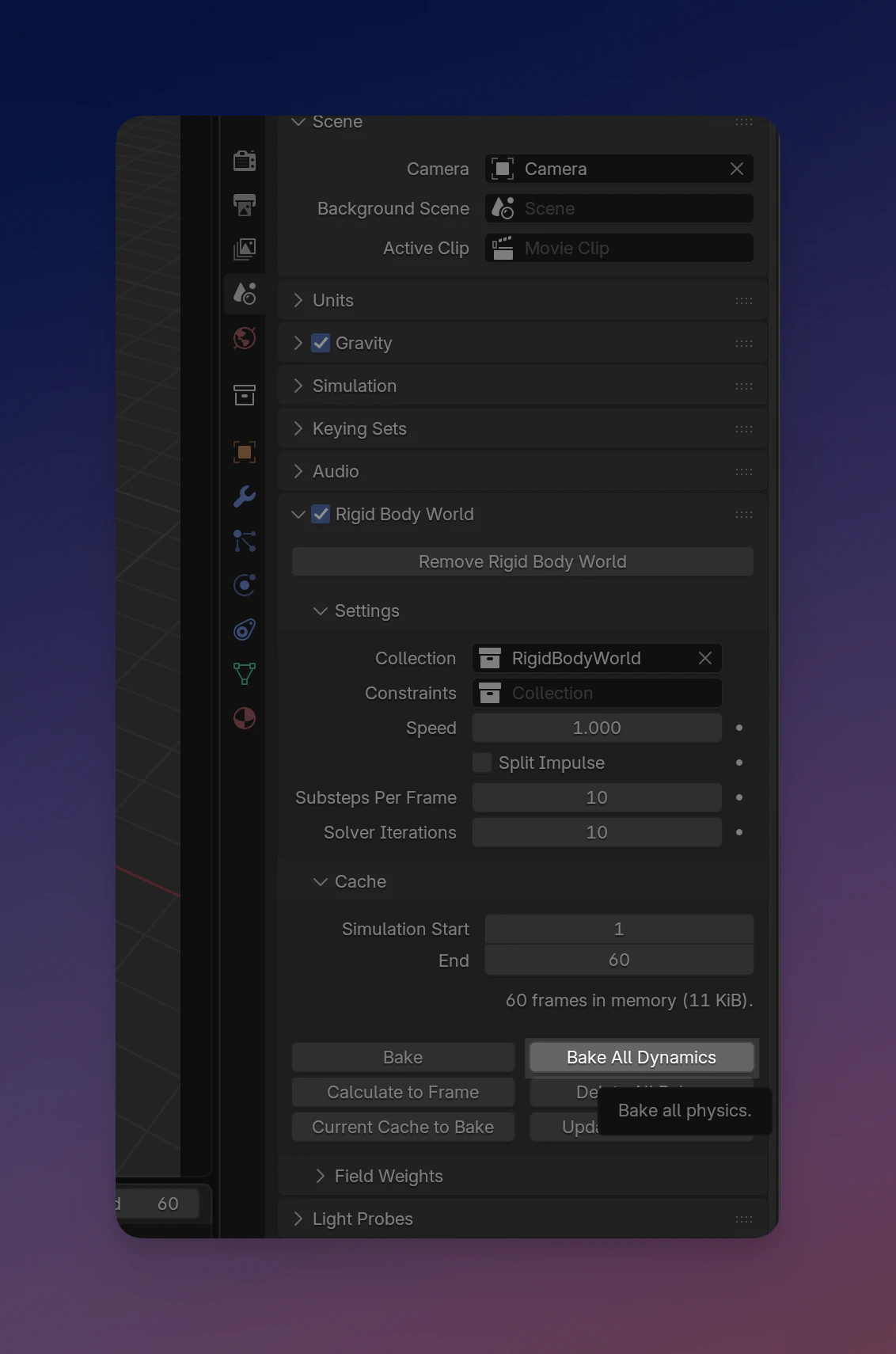
Go to the Scene properties panel.
Find the Rigid Body World settings.
Under the Cache section, click on Bake All Dynamics.
Baking All Dynamics
3
Save Your Scene
After baking, save your .blend file. The rigid body cache is stored in memory and embedded into the .blend when you save, so the simulation travels with the file.
You only need to upload the .blend file. Rigid body bakes do not create a separate cache folder to include.
4
Upload and Render
Upload your .blend file to Renderjuice and start your render.
Rigid body simulations in Blender are not automatically included when rendering on a render farm. This would be the same result if you were to transfer the file to anybody else’s computer!
Baking the simulation ensures that it can be rendered consistently across different environments. Whether you bake to keyframes or use a cache, this process ensures that the simulation behaves the same way on the render farm as it does on your local machine.
Can I use the 'Bake All Dynamics' option?
Yes. After you click Bake All Dynamics, the rigid body cache is held in memory and embedded into the .blend file when you save. You only need to upload the .blend file, with no separate cache folder to include.
Remember to save your .blend file after baking so the cache is written into it.
Do I need to bake other types of simulations?
For other simulations like fluid or smoke simulations, you need to cache and include the cache files when uploading to the render farm. Each simulation type has its own requirements. Refer to our documentation on Using Simulation Nodes with Renderjuice for more information.
Can I edit the simulation after baking?
Baked to Keyframes: Once the simulation is baked to keyframes, you can edit the keyframes like any other animation data. If you need to make changes to the simulation settings, you’ll need to re-bake the simulation to update the keyframes.
Baked All Dynamics: If you’ve baked the dynamics, you can clear the bake, make changes, and re-bake the simulation.
Which baking method should I use?
Bake to Keyframes: This method embeds the animation directly into the .blend file without the need for additional cache files. It’s efficient and straightforward.
Bake All Dynamics: Useful if you prefer to work with simulation caches. The cache is embedded into the .blend on save, so you still upload just the one file.
Choose the method that best fits your workflow.
Having trouble or something doesn’t seem right? Just chat with us—we’re happy to help and respond quickly!
Was this page helpful?
⌘I
Assistant
Responses are generated using AI and may contain mistakes.