Prepare a Blender project with Blend Project Packer
Create a Renderjuice-ready Blender project package with the local Blend Project Packer extension.
Renderjuice renders your .blend on another machine. Blend Project Packer helps
you create an upload package that includes the scene file and the files your
scene depends on.It checks the saved project, collects render dependencies, rewrites fragile paths
in a copy, and creates a portable folder or zip you can inspect before uploading.When the packer includes add-ons, Renderjuice finds them in the uploaded project
and selects them for the render. You can review those choices before validation.
Use this path when you want the safest first upload to Renderjuice.
1
Install the extension
Install Blend Project Packer from the
Blender Extensions listing.After enabling it, open the 3D Viewport, press N, and select the
Project Pack tab.
2
Save your .blend
Save the project before packing. The packer reads the saved file on disk and
writes a separate portable copy, leaving your working .blend unchanged.
3
Leave output as Folder
Folder is the best default. It is faster than zip output and lets you
inspect the package before uploading.Use Zip only if you want the extension to create a single archive
directly.
4
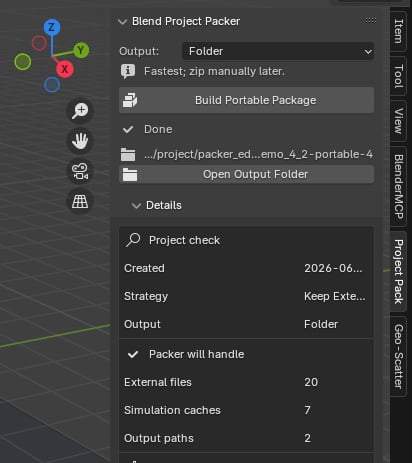
Click Build Portable Package
The extension scans the scene, checks dependencies, and creates a portable
package beside the current .blend unless you changed the output directory
in the extension preferences.
Project Pack panel after a folder package was created
5
Review warnings before continuing
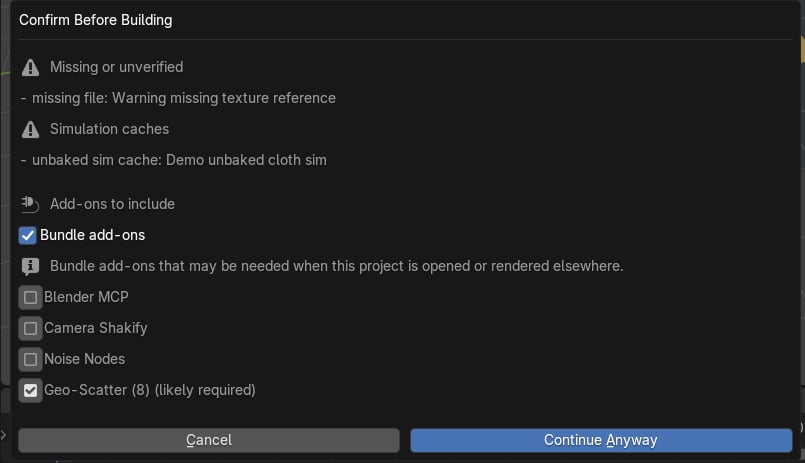
If the project check finds missing files, unbaked caches, or add-on decisions,
Blender shows a review dialog.
Review dialog for missing files, unbaked caches, and add-on decisions
Fix anything that affects the render. Continue only when you know the warning
is irrelevant to the scene, shot, or frame range you plan to render.
6
Choose which add-ons to include
If the review dialog lists add-ons that affect opening or rendering the scene,
keep the ones your scene needs selected. The packer will include copies in
the portable project. Clear any add-on that the scene does not need.
7
Zip, upload, and review the package
If you used Folder output, zip the generated portable folder and upload
that zip to Renderjuice.If you used Zip output, upload the generated *-portable.zip.On Configure Render, included add-ons appear in Select addons and are
selected by default. Remove any you do not need. Renderjuice checks the
remaining add-ons and uses them for the render; you do not need to upload
them separately.
Blend Project Packer is useful when the project has more than a simple .blend
file:
images, textures, image sequences, UDIM tiles, fonts, sounds, movie clips, or
VDB files
linked .blend libraries
Alembic, mesh cache, multires, or baked simulation cache folders
compositor or render output paths outside the project folder
add-ons that may affect opening or rendering the scene, so you can choose which
ones to include
It also writes blend-project-pack.json, a packaging receipt with copied files,
path rewrites, linked-library scan results, cache moves, checksums, warnings, and
add-on decisions. You normally do not need to edit it.
Blender’s built-in File > External Data > Pack Resources is enough for some
simple scenes. It embeds Blender-packable data into the .blend.Blend Project Packer is for project packaging. Use it when Pack Resources
does not cover the whole render setup, especially when your project needs:
cache folders that cannot be embedded into a .blend
linked libraries and their dependencies
image sequences or UDIM tiles expanded into actual files
external render or compositor output paths rewritten to portable paths
a preflight report before uploading to a render farm
If Pack Resources already gives you a .blend that opens and renders
correctly on another machine, you may not need the packer for that project.
The addons/ folder only appears when the package includes add-ons.Upload the zip that contains this folder structure, not the original working
folder unless you already know it contains every dependency.
No. The packer never touches the file you have open in Blender. It makes a separate copy of your .blend, does all the work on that copy, and writes the result to a new folder or zip beside your project. If something goes wrong with the output, your working file is exactly as you left it.
Blend Project Packer helps catch common portability problems, but it does not:
bake simulations for you
recover files that are missing on disk
prove that every custom add-on behaves correctly on Linux render nodes
submit the render job to Renderjuice
If Blend Project Packer saved you time, consider leaving a review on the
Blender Extensions listing.
It helps other Blender users find the extension.Related guides: